Learn how to create an Autopilot AI Agent in the Lead Generation Tool. Automate recurring searches, generate summaries, email intros, subject lines, and send leads to your CRM for consistent prospecting.
Overview
The Lead Generation Tool's Autopilot AI Agent automates recurring searches, generating leads, summaries, email subject lines, and intros, then sending them to your CRM. This saves time, streamlines prospecting, and ensures consistent outreach.
Step-by-Step: Build an Autopilot Search AI Agent
Step 1: Navigate to AI Agents
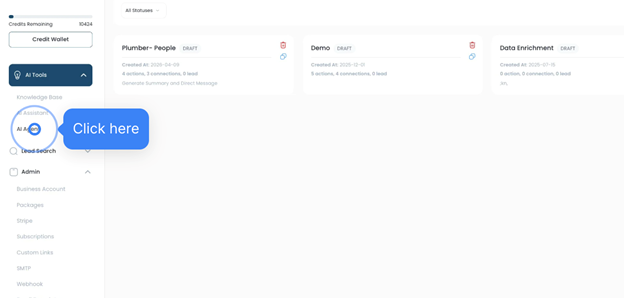
- Go to AI Tools → AI Agents
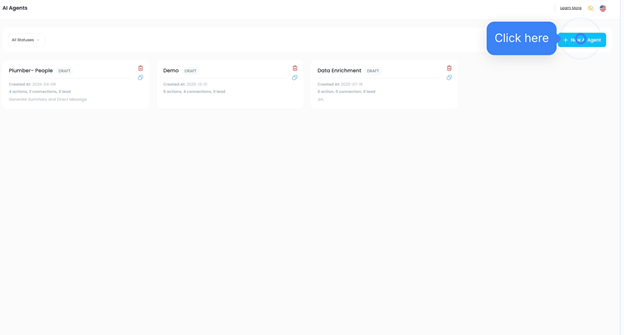
- Click New Agent
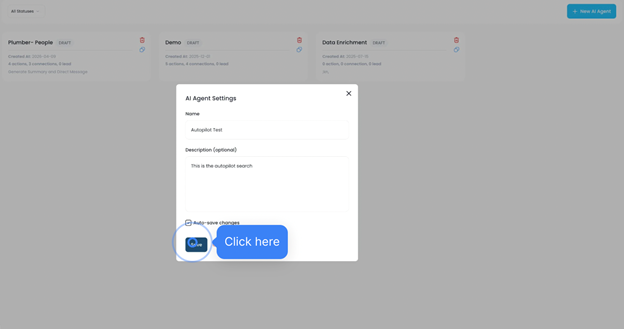
- Enter a name (e.g., TestAutopilot) and a description
- Click Save Changes → Save
Step 2: Configure Wallet (Optional)
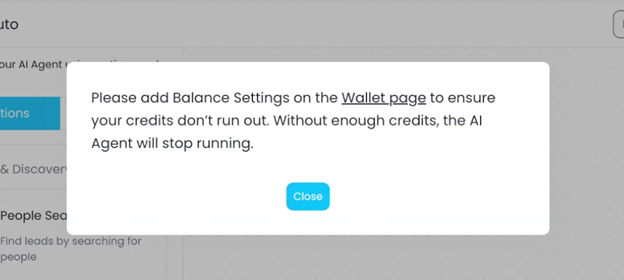
- If prompted, configure your wallet by clicking the hyperlink in the pop-up
- Or skip for now by clicking Save → Close
Step 3: Set AI Agent Trigger
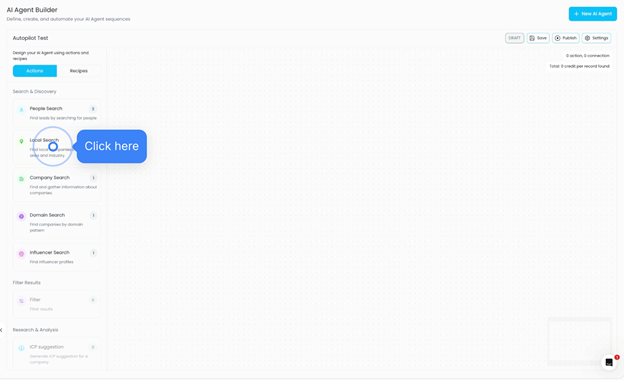
- Drag your AI agent to the AI Builder map
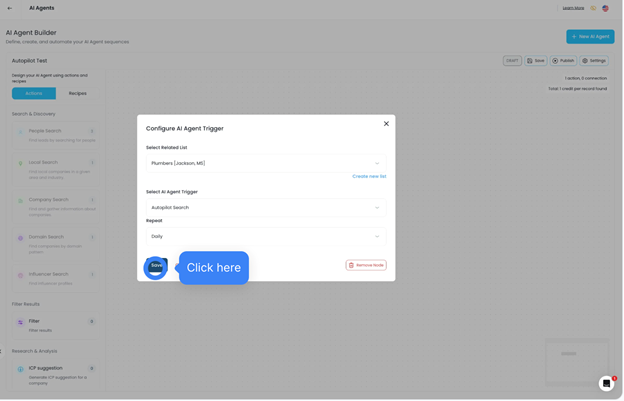
- Select the saved list to trigger the agent (e.g., Plumbers in Jackson)
- Choose Autopilot Search as the trigger
- Set frequency (Daily or Weekly) → Save
NOTE: Daily Autopilot Running Alert
A warning alert is now displayed when Daily Autopilot is active.
- When Daily frequency is selected, users will see a notification indicating the agent runs every day
- This helps prevent unintended high-frequency automation
- Encourages users to review limits, email volume, and CRM activity before confirming
- For Weekly, you can select a specific day of the week for when the Autopilot Search runs.
- When setting the trigger frequency to Weekly, a day picker will appear
- Choose the preferred day (e.g., Monday, Wednesday, Friday)
- The AI Agent will run automatically on the selected day each week
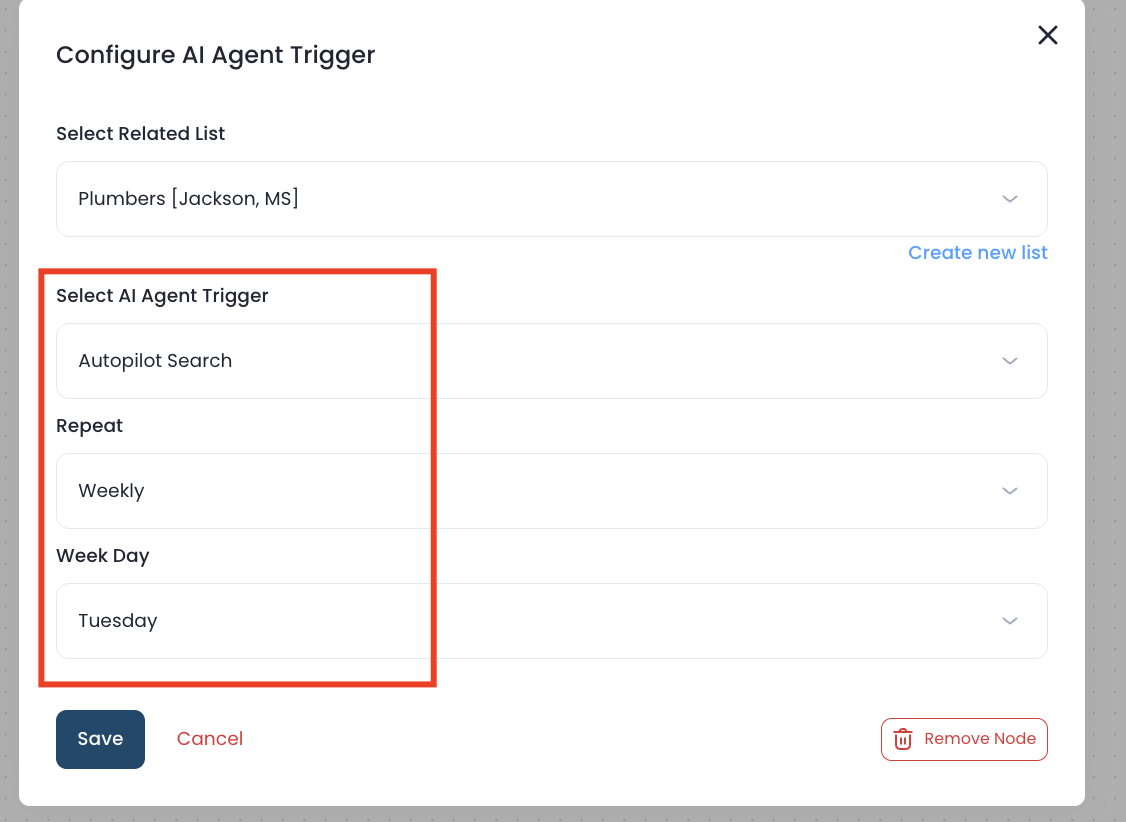
This provides more control over scheduling and allows alignment with outreach strategies or team workflows.
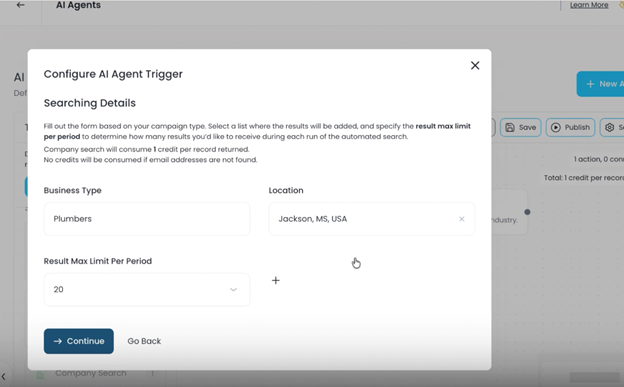
Step 4: Configure Autopilot Search Details
- Enter search criteria (e.g., role, location)
- Set the maximum number of results per period
- Click Continue to confirm search details → Continue
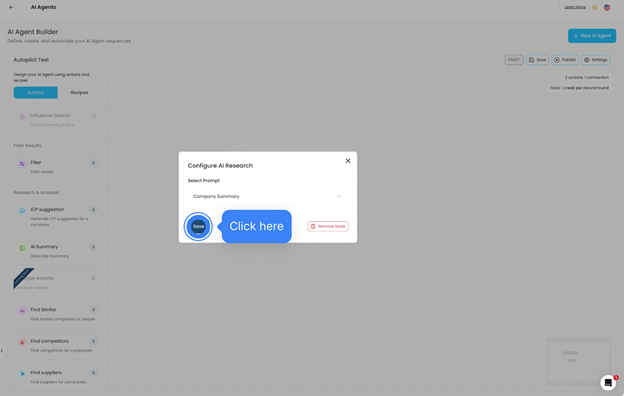
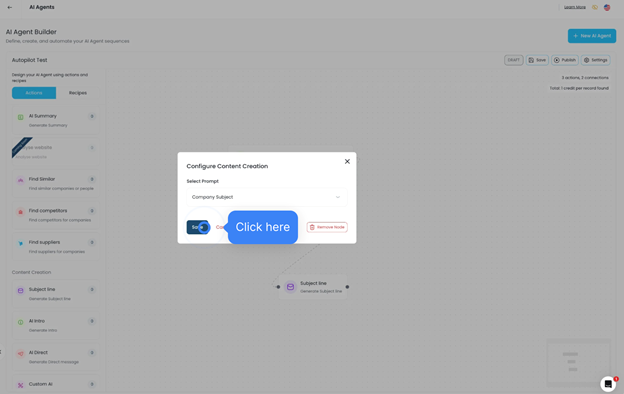
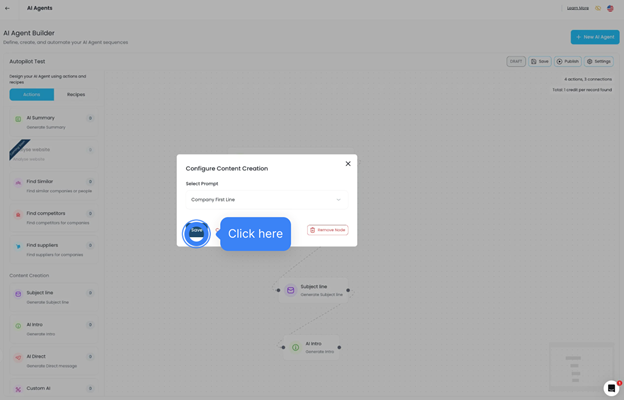
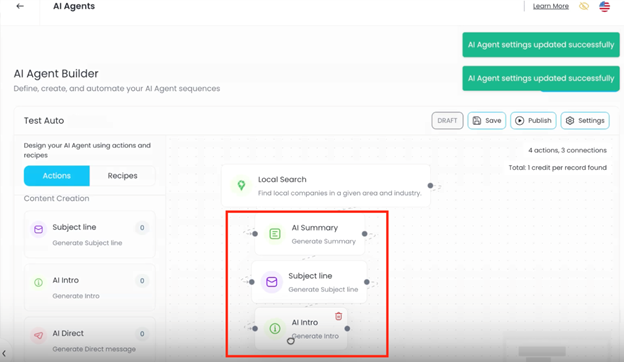
Step 5: Add AI Assistant Prompts
- Assign AI Assistant tasks such as:
- Company Summary → Save
- Subject Line → Save
- AI Intro (first paragraph of email) → Save
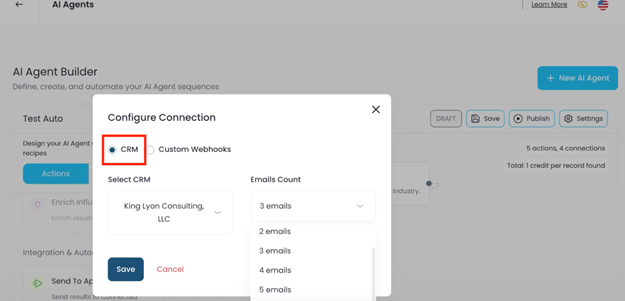
Step 6: Configure CRM Integration
- Choose how many emails to send (first email, first three, all, etc.)
- Click Save
Step 7: Publish AI Agent
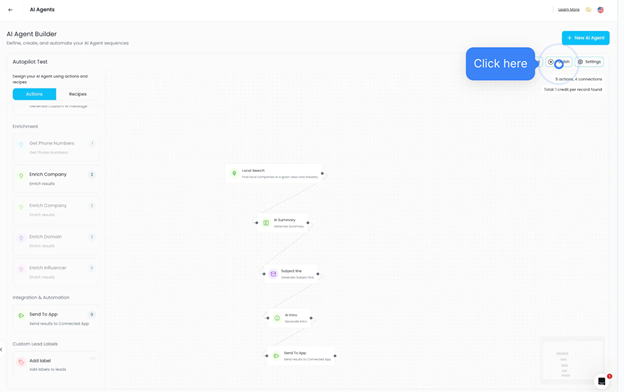
- Review trigger, tasks, and CRM integration
- Click Publish → Confirm
- The Autopilot AI Agent is now active and sending automated searches to your CRM
Was this article helpful?
That’s Great!
Thank you for your feedback
Sorry! We couldn't be helpful
Thank you for your feedback
Feedback sent
We appreciate your effort and will try to fix the article